Ultimate Membership Pro can turn WordPress into a serious membership site, but it is also one of those plugins where you can lose an afternoon clicking through settings if you do not have a plan.
I have used Ultimate Membership Pro for years, and it is still part of the setup behind MLM.Page. This tutorial walks through the way I would configure a new installation today: get the basic membership flow working first, then add payments, restrictions and the extra features you actually need.
If you are building a complete network marketing site rather than a normal membership site, also see my guide to creating an MLM website with WordPress.
What does Ultimate Membership Pro do?
Ultimate Membership Pro, usually called UMP, handles the membership side of WordPress. It lets you create free and paid membership levels, registration and login forms, account pages, protected content, subscriptions and payment workflows.
That is different from Ultimate Affiliate Pro. UMP controls membership and access. UAP handles referrals, affiliates and MLM commissions. On MLM.Page I use the two for different jobs.
If you want to learn the system before spending money, read this guide and the rest of the setup material first. Everything here is free to read, so you can decide whether the stack fits your site before you buy anything. When you are ready to build, purchase the current official plugin so you get the latest version and security fixes.
If you do not already have the current plugin, you can get Ultimate Membership Pro here. This is an affiliate link, which means MLM.Page may earn a commission if you purchase through it at no extra cost to you.
The complete MLM-specific UMP and UAP configuration walkthrough is included with MLMPage Pro. You can also see the Ultimate Membership Pro and Ultimate Affiliate Pro overview for how the free guides and the Pro setup material fit together.
The developer maintains the official Ultimate Membership Pro documentation, including current getting-started guides and payment information.
Step 1: Install UMP and check the default pages
After activating Ultimate Membership Pro, start with the pages it needs to run the membership system.
You need the registration and login flow to work, but the page I pay the most attention to is the account page. That becomes home base for the member after they join.
Before customizing anything, make sure the basic pages load and that a normal user can move through registration, login and their account without administrator access.
Step 2: Create your membership levels
This is the foundation of the whole setup.
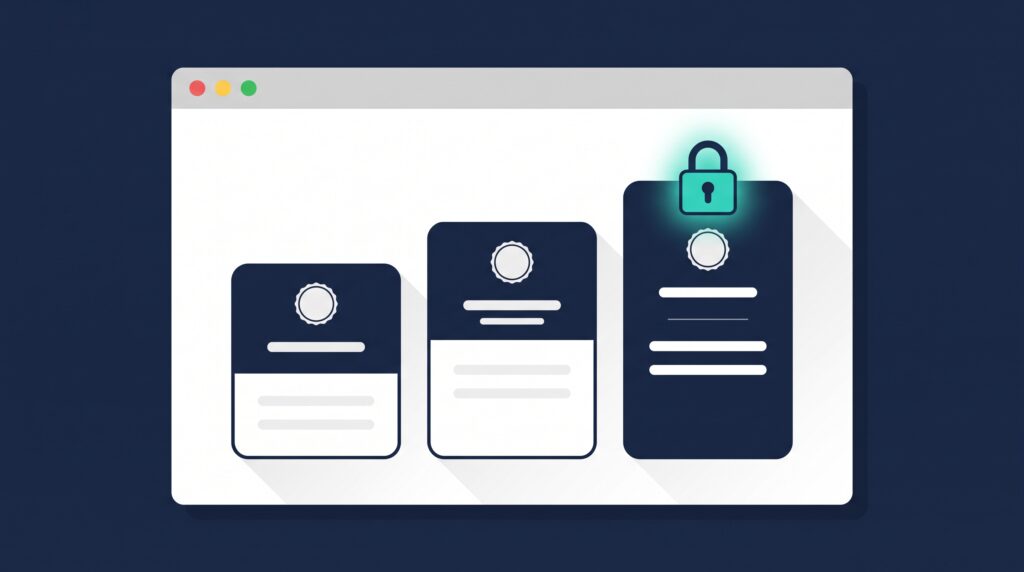
According to the current UMP documentation, membership levels determine both what access a user receives and how they acquire that access. UMP supports access types including lifetime, limited periods, date ranges and regular recurring periods. See the official membership level setup guide for the current options.
Do not create ten levels because the plugin lets you.
Start with the levels the business actually needs. For many sites that might simply be Free and Pro. If you need monthly and yearly billing, think carefully about whether those are separate access levels or different ways of purchasing the same access.
Step 3: Decide what each level can access
A membership level is only useful if it changes what the member can do.
That could mean access to premium tutorials, downloads, private community areas, courses, tools or member-only pages.
UMP can restrict WordPress content based on membership access. I recommend testing restrictions with a real test account at every level. Being able to see something as an administrator tells you almost nothing about what a normal member can see.
Step 4: Configure registration
Keep the registration form as short as you reasonably can.
If all you need is a name, email and password, do not ask somebody for twelve other pieces of information because the form builder makes it possible.
UMP supports additional and special fields, including features such as avatars, coupon fields, social login fields and payment selection depending on which modules are active. The official documentation explains the special registration fields.
Only add fields that serve a purpose.
Step 5: Set up payments for paid memberships
If your site has paid membership levels, configure the payment system after the levels themselves are correct.
The current UMP documentation says its integrated payment gateways can handle recurring payments where supported by the membership setup. You select and configure payment services inside the UMP dashboard. See the official payment gateway setup guide.
Then test it.
Do not stop because the gateway says connected. Run through the actual purchase flow and confirm the user receives the right level afterward.
Step 6: Understand one-time vs recurring memberships
This part causes a lot of confusion because access duration and billing are related.
A lifetime or limited membership may use a one-time payment. A regular period can be configured around recurring billing. UMP also supports trial settings for recurring membership levels.
The important thing is to design the offer first. Do not let the plugin decide your pricing model for you.
Step 7: Consider WooCommerce only when it solves a problem
UMP also has a WooCommerce payment integration that can connect WooCommerce products to membership levels. According to the current documentation, a completed WooCommerce order for an assigned product can grant the associated UMP membership level.
You can read the official WooCommerce payment integration documentation before choosing that route.
If you do not need WooCommerce, do not add it just to make the stack bigger.
Step 8: Build the member account experience
Once somebody pays or registers, where do they go?
The member account should make that obvious. Give them access to what they bought, their account information and whatever actions matter next.
On MLM.Page, membership is not the entire site. It is the access layer underneath tutorials, plugins, community features and other resources. That is how I prefer to think about UMP. It handles who the user is and what they should be allowed to access.
Step 9: Test every membership level
Create test accounts.
For each level, check registration, login, account access, protected content, payment if applicable, expiration or renewal behavior and logout.
Also try to access something the member should not be allowed to see.
Access control is not properly tested until you have tested both sides.
Using Ultimate Membership Pro on an MLM website
UMP by itself is not the MLM commission engine I use.
For an MLM WordPress setup, I pair it with Ultimate Affiliate Pro. UMP handles members, subscriptions and access. UAP handles referrals, downlines and commissions.
That combination is explained in my best WordPress plugins for MLM websites guide.
If you are building a community around the membership, also see how I built an MLM community website with WordPress.
Common Ultimate Membership Pro mistakes
The first is creating too many membership levels.
The second is restricting content without testing it from a real member account.
The third is assuming a payment gateway connection means the full purchase flow works.
And one I have personally had to deal with is mobile layout. If your subscription cards or checkout are squeezed on phones, see my Ultimate Membership Pro mobile responsive fix.
Frequently asked questions
Can Ultimate Membership Pro create free and paid memberships?
Yes. Membership levels can be free or paid and can use different access durations depending on how you configure the level.
Does Ultimate Membership Pro support recurring subscriptions?
Yes. UMP supports recurring membership periods with compatible payment configurations.
Does Ultimate Membership Pro work with WooCommerce?
Yes. Its WooCommerce payment integration can associate WooCommerce products with UMP membership levels.
Is Ultimate Membership Pro an MLM plugin?
I use UMP for membership rather than the MLM commission side. For the MLM structure I pair it with Ultimate Affiliate Pro.
Build the membership side of your MLM site
If you are building an MLM or network marketing website with WordPress, MLM.Page brings the plugins, tutorials and setup resources together in one place.
See what is included with MLM.Page →
If you want help instead of piecing everything together yourself, take a look at MLM website coaching or my done-for-you MLM website services.