
One of the coolest things I have added to my WordPress setup lately is the ability to connect the site directly to ChatGPT and Claude using MCP.
Instead of constantly jumping into WordPress, opening a page, finding a setting, editing something, saving it, and then going back to the AI, I can simply ask the AI to work with the site.
I can ask it to list my pages, read an article, update SEO, work with Elementor content, inspect plugin files, change supported plugin code, manage categories and tags, and a lot more depending on which tools I expose through the server.
It feels much closer to the experience I wanted from AI website builders, except I still have WordPress underneath everything and I control the site. I wrote more about that workflow in how I turned WordPress into an AI website builder and why I ultimately preferred this approach after building with both WordPress and Lovable.
Getting there was not completely painless though.
I spent way too much time troubleshooting what looked like a broken MCP server when the actual problem was sometimes much simpler. The AI clients did not always immediately see newly added or changed tools. Old conversations could continue showing an older set of tools even after the WordPress side had already been updated.
So this guide is not just the clean setup process. I also want to show you the refresh routine that has worked best for me after actually using this stuff.
Why I use this on MLMPage
An MLM WordPress site can involve memberships, affiliate ranks, MLM commissions, member pages, community features, SEO and custom plugins. I built Marketur MCP Server while working on MLMPage so ChatGPT and Claude could work with approved parts of that real setup instead of relying on screenshots and copied settings.
The general WordPress product now lives at Marketur.net. This article stays on MLMPage because it documents the AI workflow I use to build and manage an MLM WordPress site.
What Is WordPress MCP?
MCP stands for Model Context Protocol. The simple explanation is that it gives an AI client a structured way to discover tools and interact with another system.
The official Model Context Protocol specification describes MCP as a standard for connecting AI applications with external tools, data and capabilities. In practical terms, an MCP server can expose specific WordPress actions that an AI client knows how to use.
For WordPress, that means the AI is not magically getting unrestricted access to your server. It gets the tools that the MCP server makes available and the permissions behind those tools.
That distinction matters. A good WordPress MCP setup should expose deliberate actions instead of handing an AI the keys to everything.
What I Use on MLMPage
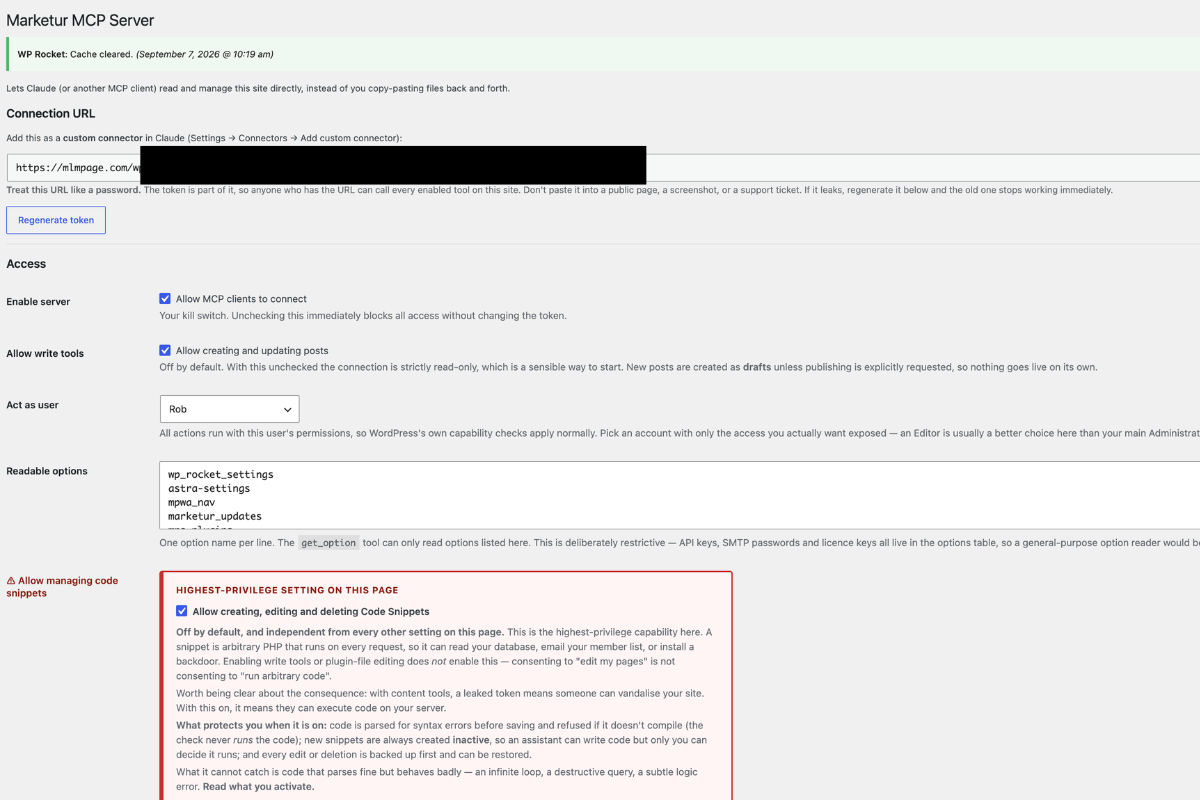
On MLMPage I use the Marketur MCP Server I built for my own WordPress workflow. This is the same plugin and connection setup I am talking about throughout this tutorial.
The server gives ChatGPT and Claude a collection of WordPress tools. I can let them read site information and content, but I can also expose carefully defined write actions.
For example, my current setup can work with things like:
- WordPress posts and pages
- Elementor widgets
- SEO titles and meta descriptions
- Categories, tags, and other taxonomies
- The WordPress media library
- Featured images
- Allowlisted plugin files
- Selected WordPress options
That is where MCP gets interesting. I am not just asking an AI how to change my website. I can ask it to inspect the site and, when I want it to, actually make the supported change.
If you want to use the same setup, start with the Marketur MCP Server setup guide. You can also browse the MLMPage Pro plugin collection to see the other WordPress tools I am building around it.
How to Connect WordPress to Claude with MCP
Claude has been the easier connection experience for me.
After your WordPress MCP server is installed, activated, and you have your connection information, open Claude and go to Customize, then Connectors.
Your connector is easy to find from there. You can connect it, disconnect it, and manage the connection without digging through several unrelated screens. Anthropic also maintains official MCP documentation covering how MCP works across its products.
Once connected, start a new conversation and test something simple and read-only first.
Show me the pages on my WordPress site.
If Claude returns the actual pages from the site, you know the basic connection is working before you try an edit.
How to Connect WordPress to ChatGPT with MCP
ChatGPT works too, but finding the connection has been less obvious in my experience.
In the current ChatGPT interface I use, the path is essentially Settings → Plugins → Browse Plugins. From there I search for the name of my plugin, open it, and get to the underlying connection controls.
If you did not already know where to look, it would be pretty easy to miss. OpenAI has been changing how plugins, apps and MCP connections are organized, so the exact labels can vary by account and plan. Their current MCP and developer mode documentation is worth checking if your interface looks different from mine.
Once your WordPress connection is enabled, I recommend starting a completely new chat before testing it.
List the pages on my WordPress site.
Do not make your first test “rewrite my homepage.” Confirm that the AI can read the site first.
Skip building the WordPress side from scratch
Marketur MCP Server is the plugin I use on MLMPage to connect WordPress with ChatGPT and Claude. I built it because I wanted the AI-builder experience without giving up WordPress.
The Problem That Made Me Think My MCP Plugin Was Broken
This is the part I wish I had known before troubleshooting everything else.
I updated my MCP server with new tools. Claude could eventually see them, while ChatGPT was still showing the previous tool set.
From my side, that looked exactly like a server problem.
We checked the WordPress endpoint. We checked security plugins. We checked the host. We looked at ModSecurity and firewall possibilities. I disconnected and reconnected things. I even tested alternate endpoint paths while trying to figure out why one client appeared to be working differently from another.
Some of those checks are still useful if you have a genuine connection problem, but I would not start there anymore.
The simpler explanation can be stale connector or conversation state. MCP clients need a current view of the tools the server exposes. In fact, the current MCP specification includes cacheable tool-list results, and OpenAI documents that some approved MCP app tool definitions can remain frozen until they are refreshed. That does not mean every stale-tool issue has the same cause, but it is another reason not to assume WordPress is broken the moment a newly added tool does not appear.
In my testing, starting a new conversation has been one of the most important troubleshooting steps.
My WordPress MCP Refresh Routine
If you install the MCP plugin for the first time, update it, or add new tools and the AI does not see what you expect, this is the order I would use.
- Deactivate the WordPress MCP plugin.
- Reactivate the plugin.
- Disconnect the connector in Claude or ChatGPT.
- Reconnect it using the current MCP connection information.
- Start a brand-new conversation.
- Run a simple read-only test.
That is the routine that has worked best for me.
And if you have only changed something on the MCP server and suddenly a new tool is missing, I would actually try the easiest step first: start a new chat.
If the new chat sees the tool, you just saved yourself a lot of unnecessary troubleshooting.
Use This Troubleshooting Order Before Blaming WordPress
If your WordPress MCP connection is not behaving correctly, I would troubleshoot from easiest to hardest.
- Start a new AI conversation.
- Confirm the WordPress plugin is active.
- Deactivate and reactivate the MCP plugin.
- Disconnect and reconnect the AI connector.
- Test a simple read-only WordPress action.
- Confirm the MCP endpoint is reachable.
- Check WordPress security plugins or WAF rules.
- Check your hosting firewall or ModSecurity logs.
- Only then start digging into deeper server or network issues.
This order matters because we basically did some of the hard stuff before fully ruling out the easy stuff.
Why Starting a New Chat Can Matter
An MCP client needs to know which tools a server provides. When you add, remove, or change tools, the AI client needs a current view of that tool catalog.
In a perfect world that would always happen instantly and transparently. In actual use, I have found it safer not to assume that an existing conversation has refreshed everything.
So if your server says it has 40 tools but your current AI conversation still acts like there are 33, do not immediately rewrite your plugin.
Open a new conversation and check again.
That one step would have saved me a lot of time.
ChatGPT vs Claude for WordPress MCP Setup
Both can be useful once connected. The biggest difference for me has been connection management.
Claude’s connector controls are straightforward. I go to Customize, open Connectors, and the connection is right there.
ChatGPT’s current plugin system takes more digging. On my account I go through Settings, Plugins, Browse Plugins, search for the plugin, open it, and then manage the connection.
I would love to see ChatGPT make custom connections as obvious as Claude does. When you are actively developing an MCP server and reconnecting it often, those extra steps get old fast.
That interface can change, though. OpenAI has already been changing how apps and plugins are organized, so if the menus look different when you read this, check the current documentation rather than assuming your MCP server is broken.
Test Read Access Before Write Access
This is another habit I recommend.
Do not connect your WordPress site and immediately tell the AI to modify a complicated Elementor homepage or rewrite a plugin file.
Start with read-only requests:
- What is the name of my WordPress site?
- List my published pages.
- Show me my installed plugins.
- Read this post.
- Show me the SEO metadata for this page.
Once those work, test a small reversible write.
For example, update a draft post or make a small change to a test page. If your MCP server supports backups for sensitive changes, even better.
Be Careful With WordPress Write Tools
MCP is powerful precisely because it can go beyond chat.
That also means you should pay attention to what your server exposes. The MCP specification treats authorization and controlled tool access as important parts of the protocol.
I prefer narrow tools with clear jobs. If the AI needs to update one Elementor widget, give it a tool designed to update that widget instead of making it replace an entire page. If it can edit plugin files, restrict that ability to plugins you intentionally allow and keep backups.
The goal is not “give AI complete server access.”
The goal is “give AI the exact WordPress tools that make my workflow faster while keeping the dangerous stuff controlled.”
Why I Think WordPress MCP Is a Big Deal
I spent time experimenting with newer AI website builders because I love the experience of telling an AI what I want and watching it build.
What kept pulling me back to WordPress was control, cost, the plugin ecosystem, and the fact that I already know how to build almost anything I need with it.
MCP starts bringing those two worlds together.
I can keep WordPress, my hosting, my plugins, my database, and the parts of the stack I already trust. Then I can put a conversational AI layer in front of the work I used to do manually.
For me, that is much more interesting than replacing WordPress.
Try Marketur MCP Server
If the reason you found this article is because you want to connect your own WordPress site to ChatGPT or Claude, you do not have to build the WordPress MCP side from zero.
Marketur MCP Server is the plugin I am using on MLMPage. I am actively building it around the jobs I actually want AI to handle in WordPress, including content, SEO, Elementor, media, taxonomies, selected plugin work and other permission-controlled actions.
The standalone Marketur MCP product is available through Marketur.net. On MLMPage, I document how I use AI and WordPress specifically to build and operate MLM websites.
See Marketur MCP for WordPress →
Final Thoughts
If you want to connect WordPress to ChatGPT or Claude, MCP is worth learning.
Just remember the lesson I learned the hard way: when something changes on your MCP server and the AI does not see it, do not immediately assume the plugin is broken.
Start a new conversation first.
If that does not work, reactivate the WordPress plugin, reconnect the AI connector, start another new conversation, and test with a simple read-only request.
Only after that would I start chasing hosting firewalls, security plugins, ModSecurity, endpoint problems, and everything else we chased.
If you are following along with Marketur MCP Server, use the step-by-step connection guide next. I will also be adding the YouTube walkthrough to this article so you can watch the entire setup from WordPress to ChatGPT and Claude.